
Enchanted Portal Guide
The Enchanted Portal is your interactive view to the tropical world outside your tiki bar. Trigger effects on the portal by using the Relic Amplifier and the various relics.
WARNING:
- Keep the Enchanted Portal away from water or liquid. Do not get wet!
- Keep the Enchanted Portal out of direct sunlight in a cool location with airflow.
- Never open the case or remove the SD Card from the Enchanted Portal. This will damage the device.
- Never plug anything into the USB ports on the end of the Enchanted Portal. This can damage the device.
- Do not drop the Enchanted Portal
Not properly following these guidelines will void the product warranty.
DO NOT PLUG THE POWER CABLE INTO AN OUTLET UNTIL INSTRUCTED TO DO SO
Plugging cables into the Enchanted Portal
Plug the included HDMI adapter and power supply into the indicated ports on the side of the Enchanted Portal.
NOTE: The plugs should both easily insert with a gentle push. DON'T FORCE THEM! While the power supply may be inserted in either direction, the HDMI adapter will only insert in one direction.
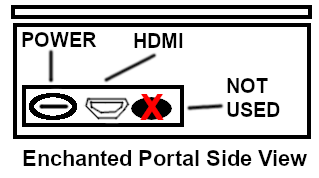

NEVER plug anything into any of the ports on the front of the Enchanted Portal. It will void the warranty.
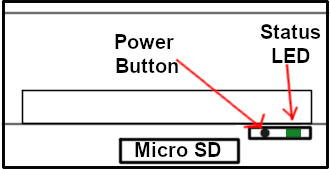
The power button can be used to turn ON/OFF the power if the provided power cable does not have a rocker switch inline. READ THE SECTION ON HOW TO PROPERLY POWER DOWN THE ENCHANTED PORTAL BEFORE USING.
Plugging cables into the Enchanted Portal
Plug an HDMI cable (not included) from the HDMI adapter to your monitor. When the Enchanted Portal boots, your monitor should automatically change to HDMI (1080p) if your monitor supports that display resolution. If for any reason your monitor does not automatically change to 1080p, consult your monitor's User Guide.
Power on your monitor. This should be done BEFORE(or just a few seconds after) powering on the Enchanted Portal or the displayed scene on the monitor may appear in a letter-box format(i.e. not full screen).
On your monitor, set the proper input based on whichever input you used
on the back of your monitor. (Refer to your monitor's User Guide to set the proper input.).
Powering on the Enchanted Portal
Plug the provided power supply into a 120v outlet.
If your power supply has an inline rocker switch on the cord, press it to turn power on.
If your power supply does NOT have an inline rocker switch on the cord the power should turn on automatically. If it does not, gently press and release the power button on the device(See Figure 3 above).
A few seconds after the Enchanted Portal is turned on, the Tikibar.tech logo
should appear on a black screen. A few seconds later the Enchanted Portal logo should appear full screen on a white
background and then the Enchanted Portal scene will fade into view as shown in Figure 4 below.
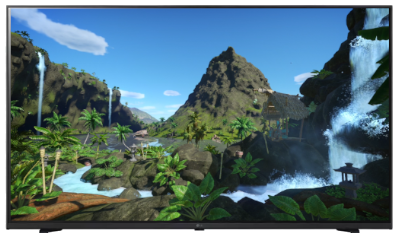
Figure 4
You can either set your monitor to 1080p resolution via the monitor remote or menu system (see your monitor User Guide), or you will need to power down the Enchanted Portal (see proper power down procedure below) and then power it back up.
Shutting Down the Enchanted Portal
The Enchanted Portal was designed with tiki bars in mind. That is, connected to a single power source that turns the entire tiki bar ON/Off whether it be on a timer based system or a simple switch. That being said, just like a computer, the possible power surge associated with this type of system MAY, over time, shorten the life of the components. If possible, following the below POWER DOWN procedure can help mitigate that possibility.
To properly shutdown the system follow these steps:
- Use the SHUTDOWN card on the Relic Amplifier OR press and hold the power button on the Enchanted Portal device (see Figure 3 Above) for about 5 seconds.
- Wait for the GREEN light on the bottom of the Enchanted Portal (see Figure 3) to stop blinking and turn SOLID RED. This should take less than 10 seconds.
At this point your Enchanted Portal is powered down. The solid RED LED(see Figure 3) indicates the device is still plugged into power. You may leave it in this state if you wish.
At this point your Enchanted Portal is powered down. The solid RED LED(see Figure 3) indicates the device is still plugged into power. You may leave it in this state if you wish.
If your power cable has an inline rocker switch you may click the rocker to completely disconnect from power.
If you power cable does NOT have an inline rocker switch, unplugging the cable will completely disconnect from power. NOTE: PRESSING THE POWER BUTTON WILL TURN THE POWER BACK ON if your cable does NOT have an inline rocker switch.
If your power supply has a rocker switch but you unplugged or turned off power via some other method, you will have to remember to flip the rocker switch OFF and then ON again in order to restart the device.
Mounting the Enchanted Portal Box on the Wall
While mounting is NOT recommended, if you choose to do so NEVER USE METAL OR ANY CONDUCTIVE MATERIAL INSIDE THE MOUNTING HOLES!
Conductive material inside the mount holes may touch the circuit board and cause a short, destroying The Enchanted Portal and voiding the warranty. If you choose to use the mounting holes use plastic, non-conductive mounts and use extra caution when inserting them into the mounting holes.
Instead of the mounting holes, using a plastic mounting strap or other device that does not require putting anything inside the mounting holes is another option.
In either case you can find items like this on Amazon or other sites.
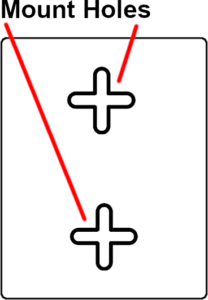
Enchanted Portal case bottom view
Touble Shooting